
Basic Git Commands Every Beginner Should Know

Git isn’t just a tool—it’s the backbone of modern software development. Whether you’re working solo or contributing to open-source projects, Git helps you track changes, collaborate smoothly, and avoid messy version conflicts. Yet, for many beginners, Git commands can feel intimidating. Let’s break them down with theory, explanations, and plenty of practical examples.
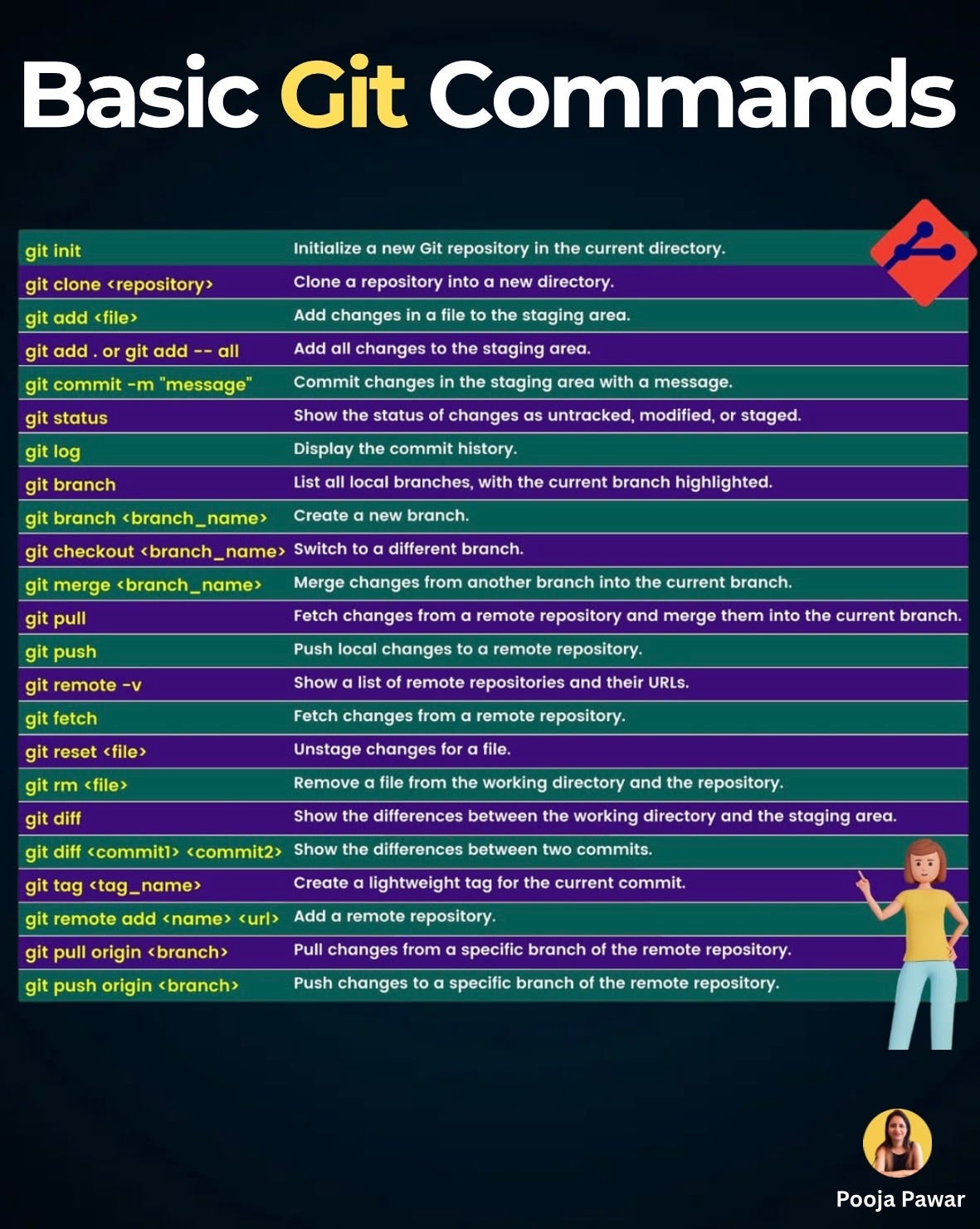
Starting with the Foundation: git init & git clone
Before you do anything, you need a Git repository.
git init creates a brand-new repository in your current folder. Think of it as opening a fresh notebook where every page is tracked. Example: You’re starting a new project from scratch—git init turns your folder into a Git-tracked repo.
git clone copies an existing repo from GitHub, GitLab, or Bitbucket. Example: Want to contribute to a popular open-source project? Just run git clone https://github.com/user/project.git and you have a working copy on your computer.
Use cloning when joining teams or downloading open-source projects; use init when starting fresh.
Tracking Changes: git add
When you make changes, Git doesn’t save them automatically—you need to stage them first.
git add adds a specific file to staging.
git add . adds all changes in your folder.
Example: You updated index.html and style.css. Running git add . stages both.
Use git add -p for more control—it lets you stage parts of a file instead of the whole thing.
Recording Work: git commit
Staging is only half the job. To permanently record your changes, you commit them.
git commit -m “message” creates a snapshot of staged changes with a message. Example: git commit -m "Added login functionality" clearly describes your work.
Best Practice: Write meaningful commit messages. Avoid vague ones like “updated code.”
Staying Informed: git status & git log
Git has built-in tools to keep you updated:
git status tells you which files are staged, modified, or untracked.
git log shows the entire history of commits.
Example: Before pushing changes, running git status ensures you didn’t forget anything.
Working with Branches: git branch & git checkout
Branches are like parallel timelines for your project.
git branch lists all branches.
git branch feature-login creates a new branch.
git checkout feature-login switches to that branch.
Example: Your team is adding payment integration without disturbing the main app. Create a new branch just for this feature.
Modern Git versions let you use git switch <branch> (clearer than checkout).
Combining Work: git merge
Branches eventually need to come together.
git merge <branch_name> merges one branch into another.
Example: After finishing your feature-login, you merge it into main so everyone gets the update.
Syncing with Remote: git pull & git push
Collaboration requires syncing with a remote server.
git pull fetches and merges changes from the remote repo.
git push uploads your local commits to the remote.
Example: Before working, always git pull to avoid conflicts. After finishing, git push to share your work.
If multiple people push changes at once, you might face conflicts—Git will ask you to resolve them before proceeding.
Managing Remotes: git remote
Your local repo doesn’t know about remotes until you connect them.
git remote -v lists remotes.
git remote add origin connects your repo to GitHub.
Example: After git init, you run git remote add origin https://github.com/yourname/project.git to link it.
Handling Problems: git reset & git rm
Not every change should stay.
git reset unstages changes.
git rm removes files from both your repo and your system.
Example: Accidentally added a debug file? git reset debug.log unstages it.
Comparing Versions: git diff
Sometimes you want to see what changed before committing.
git diff shows unstaged changes.
git diff compares two versions.
Example: git diff HEAD~1 HEAD shows what changed in the last commit compared to the current state.
Adding Finishing Touches: git tag
Tags let you mark important points in history—like version releases.
git tag v1.0 marks the current commit as version 1.0.
Example: When releasing your first stable app version, tagging it helps future developers track milestones.
Latest Updates in Git
git switch and git restore are new commands that simplify branch switching and file restoration.
GitHub now supports “squash and merge” to keep commit history clean.
GitHub CLI (gh) lets you manage issues and pull requests directly from the terminal.
Git may seem like a jungle of commands, but at its heart, it’s about tracking changes, collaborating, and keeping projects organized. Start with the essentials—init, add, commit, push, pull—and gradually move into branches, merges, and tags.
Remember: consistency is key. The more you use Git, the more natural it feels.